
I keep a list of blog post ideas in a Google Sheet. It’s a decent list. It is also a list, which means it mostly sits there while I do other things.
So I’m building a bot to do the first-draft work. The pipeline is simple to describe: Google Sheet to the Claude API to a WordPress draft to an email that tells me it’s ready. I’m still partway through, but the first phase is done, and it taught me a few things worth writing down.
The shape of the thing
Here’s the whole flow in plain English. The bot reads a row from my sheet. It sends that idea to Claude through the API (the API is just a way for one program to talk to another, in this case my code asking Claude to write something). Claude writes a draft. The bot saves it to my WordPress site as a draft and sends me an email so I know to go look.
The most important part is a rule I set before writing anything: the bot only makes drafts. I publish by hand, every time. Nothing goes live unless I’ve read it, changed what needs changing, and pressed the button myself.
Building it one phase at a time
I’m building this with Claude Code, an AI coding tool that works inside your project folder, running in VS Code (a free code editor). I’m not a programmer, so I didn’t ask for the whole pipeline at once. I broke it into phases and finished one before starting the next.
That approach has worked for me before. Each phase is small enough that I can tell whether it worked, and if it didn’t, I know exactly where to look.
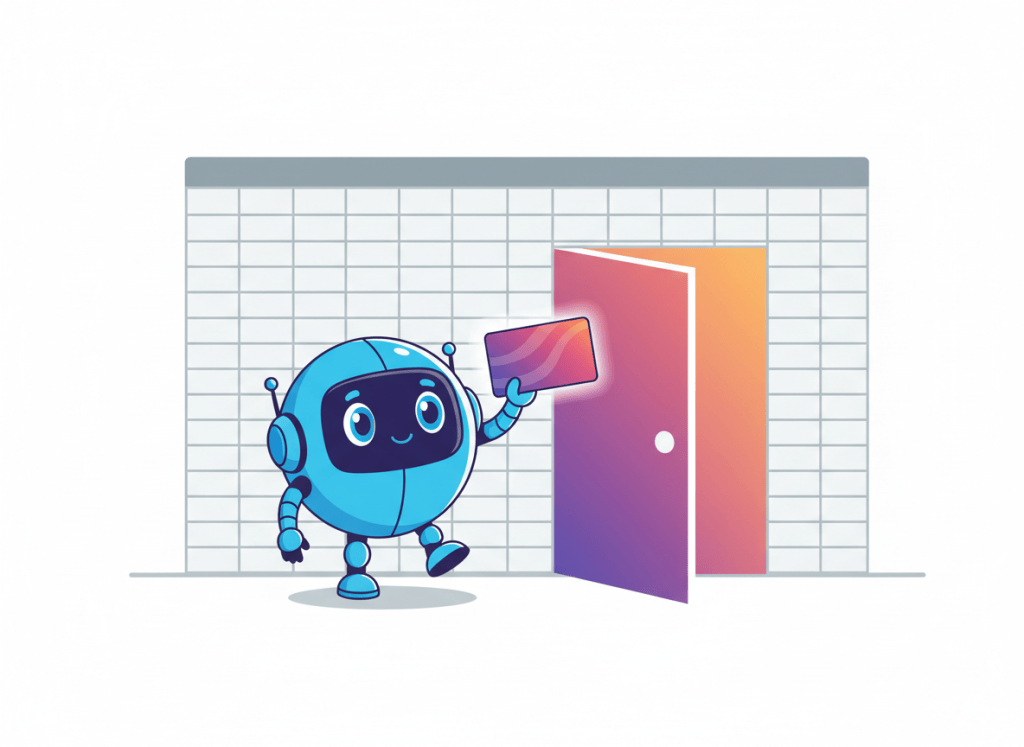
Phase 1: letting a robot read my spreadsheet
The first phase was the least glamorous and the most necessary: giving the bot permission to read my Google Sheet. Google doesn’t let a program wander into your files, which is reasonable. You have to set up a proper identity for it. The steps looked like this:
- Create a new project in Google Cloud (Google’s developer console).
- Turn on the Sheets API, which is the switch that lets programs read and write spreadsheets.
- Create a service account, which is basically a robot user with its own identity.
- Download that robot’s key, a file that works like its password.
- Share my sheet with the robot, the same way I’d share it with a coworker.
That last step is the one that makes it click. The robot has an email-style address, and you add it as a viewer on your sheet. After that, it can see the sheet and nothing else in my account.
That key file deserves respect. Anyone who has it can act as the robot, so it stays out of anything public.
The small snag: Python wasn’t installed
The bot is written in Python, a programming language that’s popular for this kind of glue work. My computer didn’t have it yet.
This turned out to be painless. The newer Python installer took care of PATH for me. PATH is the list of places your computer looks when you type a command, and getting it wrong is the classic reason a fresh install “doesn’t work.” I didn’t have to touch it. If you’ve been put off by older install guides full of PATH warnings, it’s worth trying again with the current installer.
What’s still to come
Most of the pipeline is ahead of me. The plan is for the bot to run daily on GitHub Actions, a free service that runs your code on a schedule without you keeping a computer on. That isn’t set up yet, so I’m not going to pretend it is.
I’ll write up the next phases as I finish them, including whatever goes wrong. [JARED: anything surprising or frustrating in phase 1 that you want to mention? e.g., the part that took longest]
Want to try something like this?
Start with the spreadsheet and ask your AI tool to build only the first phase. Here’s a prompt you could adapt:
“I want to build a small Python script that reads rows from a Google Sheet. I’m not a programmer, so walk me through this one step at a time. First, explain how to create a Google Cloud project, enable the Sheets API, create a service account, download its key, and share my sheet with it. Don’t write any other code until I confirm that setup is done.”
Two habits help. Finish each phase and check that it works before asking for the next one. And decide your safety rule up front. Mine is “drafts only, I publish by hand,” and it’s the reason I can let a bot near my website without worrying.




Leave a comment